Download the installer
Get the installer for your computer from the download page, which also lists each file’s size and SHA-256:
| Computer | File |
|---|---|
| Windows 10/11 | the .exe installer |
| Mac with Apple Silicon | the .dmg marked aarch64 |
| Mac with Intel | the .dmg marked x64 |
On a Mac, drag Recall into Applications. On Windows, run the installer.
If your computer asks before opening it
From version 0.1.9, Recall’s installers are signed. Windows names the publisher, and macOS checks the app with Apple before it opens. Only use installers from the download page or ones I’ve sent you.
Windows. The installer opens normally. Because the certificate is new, a few PCs may still show “Windows protected your PC” for a while. Check that it names Recall’s publisher, then click More info and Run anyway.
Mac. The first time you open Recall, macOS asks whether you want to open an app downloaded from the internet. Click Open. You only see this once.
Older versions (0.1.8 and earlier) aren’t signed. If you’re installing one of those, Windows shows “Unknown publisher”: click More info, then Run anyway. macOS says it “could not verify ‘Recall’ is free of malware”: open System Settings → Privacy & Security, click Open Anyway next to the message about Recall, and confirm. If macOS says Recall “is damaged and can’t be opened”, it isn’t damaged. Run this in Terminal, then open Recall again:
xattr -dr com.apple.quarantine /Applications/Recall.app
Install the Ableton script, then restart Live
Recall’s setup finds your Ableton User Library on its own and installs a small Control Surface script, the same built-in mechanism Live uses for hardware like Push.
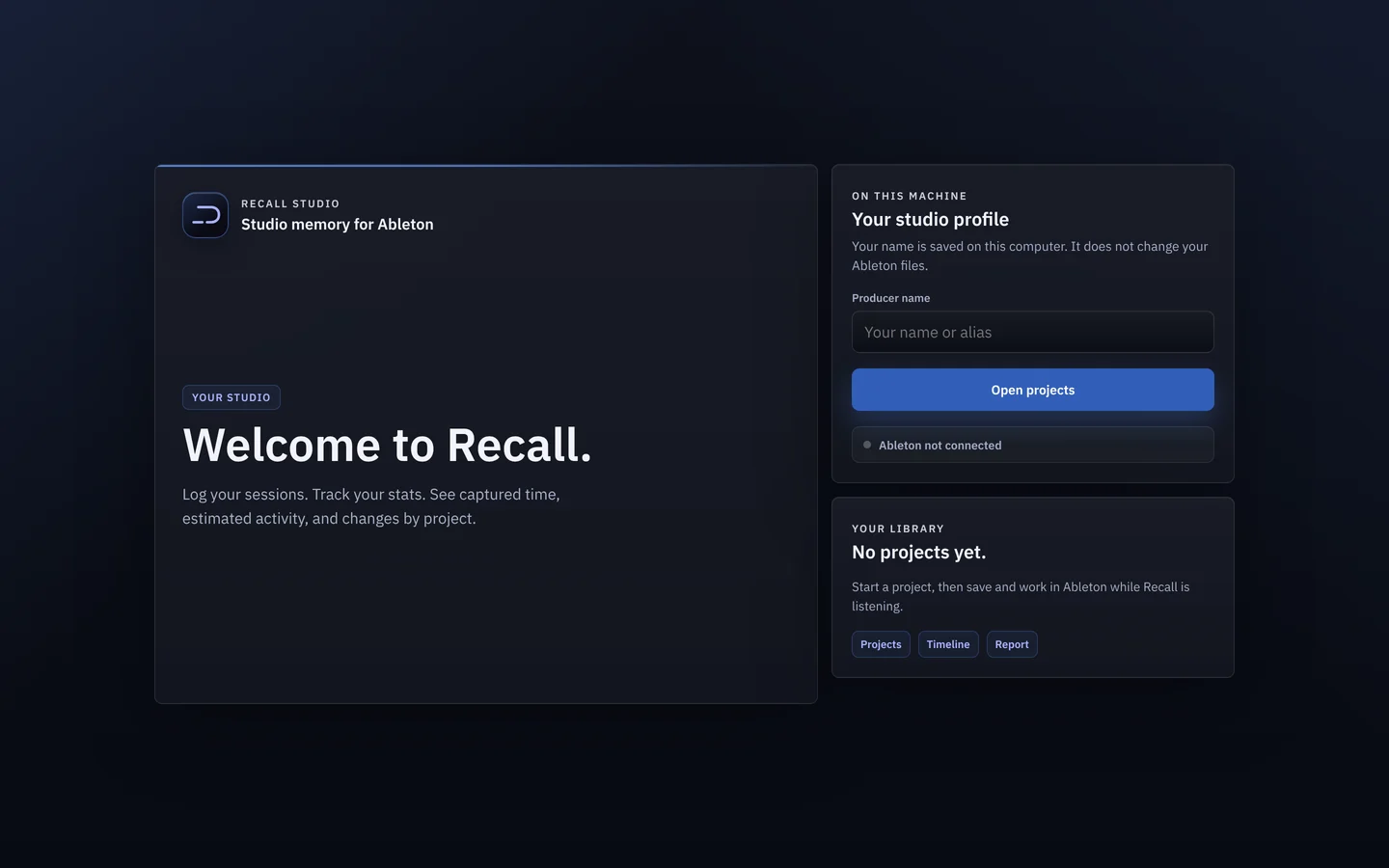
Restart Ableton after the script installs. Live only loads these scripts when it starts, so nothing connects until you do.
Choose Recall as a Control Surface
- In Ableton, open Preferences → Link, Tempo & MIDI.
- Find an empty Control Surface slot and choose Recall.
- Leave MIDI Input and Output set to None. Recall doesn’t need them.
That’s a one-time step. From then on Recall is on for every set, with nothing to add per project.
Enter your license key
Once Ableton connects, the final setup screen asks whether you have a license key. Paste the key from your receipt email and choose Activate. If you do not have a key yet, choose Use the 14-day trial for now. You can enter a key later in Settings → License.
Check it’s listening
Recall’s sidebar status changes from Ableton not connected to Listening to Ableton. Open a set and work the way you normally would, with Recall running in the background.
Updating
When a new version is out, a card appears naming the version you have and the new one. Click Update now: Recall downloads it, closes and reopens by itself. Later dismisses the card and changes nothing.
To confirm, open Settings → What’s running. If the release changed the Ableton script, quit and reopen Ableton so it picks up the new one.
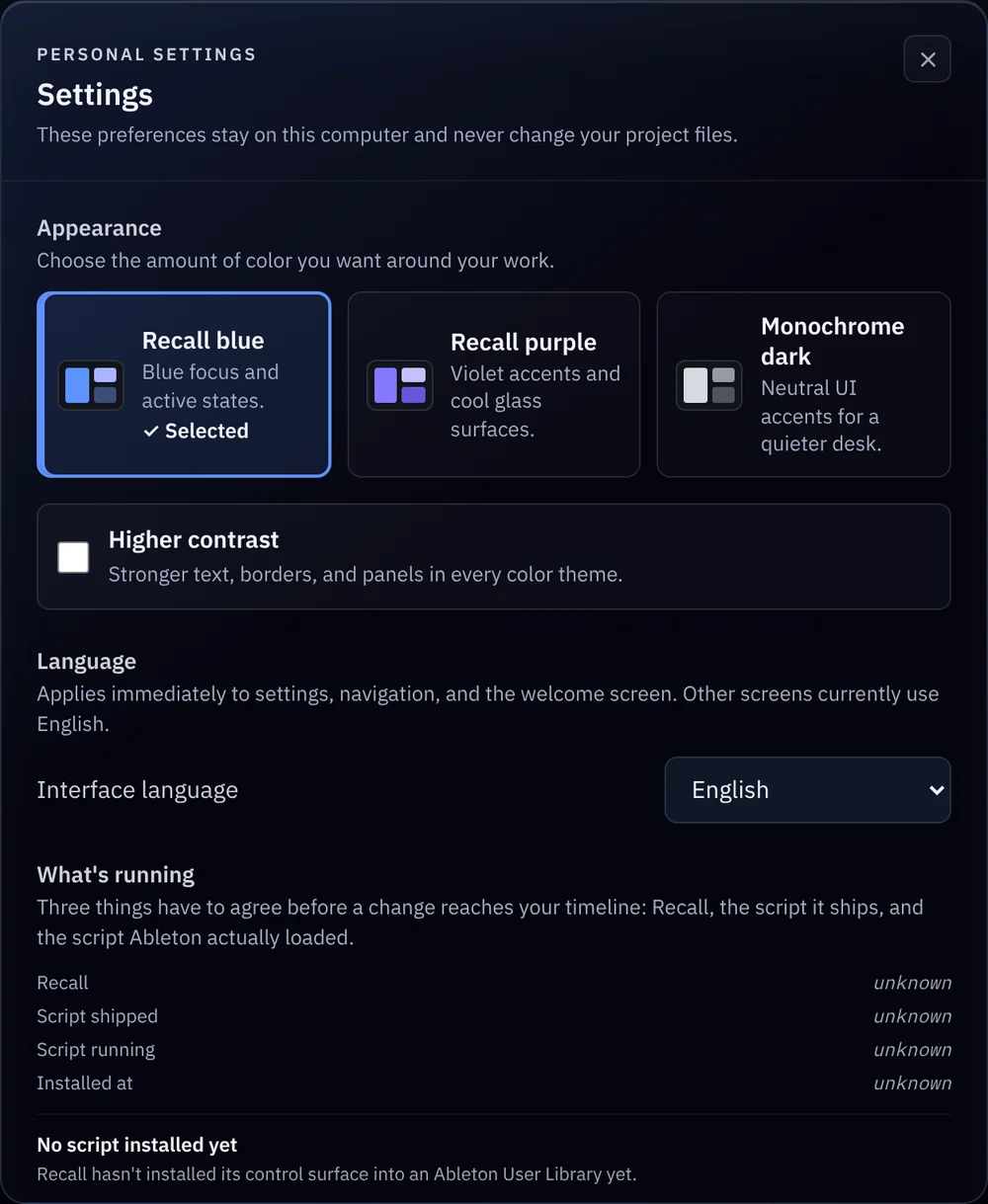
If something’s off
Recall isn’t in the Control Surface list. Quit Live completely and open it again. Live reads its scripts at startup.
An older track name shows up. After you delete, reorder or group tracks, Live renumbers auto-named tracks. Recall keeps the name a track had when the work was captured.
Anything else. The docs cover every status in What’s running and how to clear it. Or use Report a problem in the sidebar. You read the full report before it’s sent, and nothing is sent automatically.