For Recall 0.1.5
Learn Recall, one part at a time.
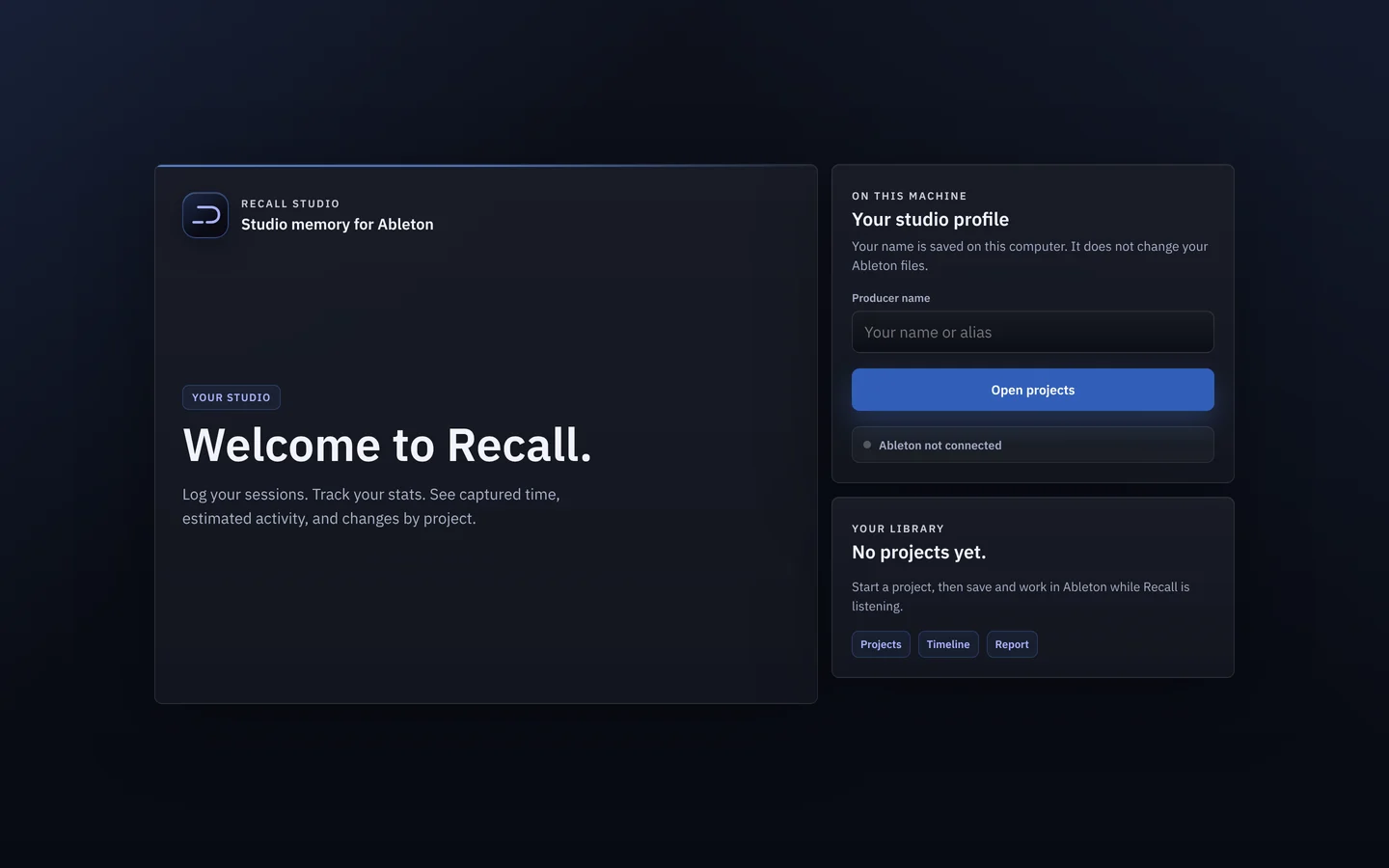
Short, practical how-tos. Start with setup, then learn to read what Recall captured.
Coming next
Written and being checked against the app. Open one to read the draft.
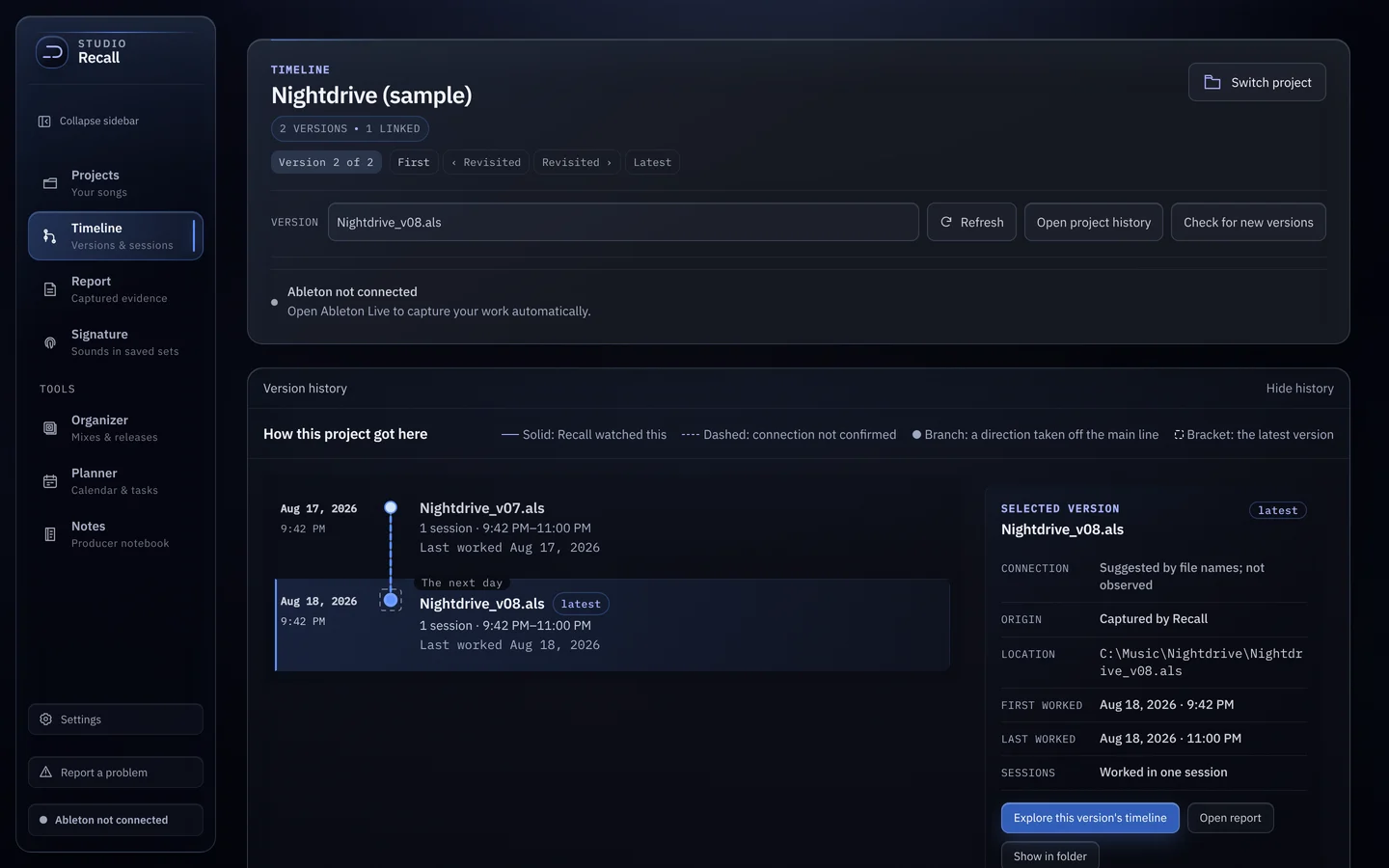
- 03Use the ReportThe Log, Project history, Device chains and Overview, and how to save the Report as a PDF.Draft
- 04Find your projectsRecall scans your music folder, so it starts out already knowing every song and its versions.Draft
- 05See your SignatureThe instruments, presets, drums, samples and chains you keep coming back to, across every project.Draft
- 06Lay out a release in OrganizerBuild an album, EP or single from your mixes, with waveform, loudness and dynamic range for every bounce.Draft
- 07Plan your week in PlannerYour tasks, the sessions Recall captured, and your release dates on one calendar.Draft
- 08Keep a notebook in NotesA plain producer notebook for ideas, mix notes and to-dos, kept on your machine.Draft
Quick answers
Before you email me.
Anything else: recallstudiossupport@gmail.com
- Where is my data?
- On your computer, in your user profile. Updates never touch it.Windows: %APPDATA%\com.gberg.recall-studioMac: ~/Library/Application Support/com.gberg.recall-studio
- Does Recall change my Live Sets?
- No. It reads your saved sets to work out what changed between versions, and writes nothing back to them.
- Something looks wrong.
- Use Report a problem in Recall’s sidebar. You see the whole report before anything leaves your computer, and only pressing Send sends it.
- How do I uninstall?
- Uninstall from Windows Settings, or drag Recall from Applications to the Trash. Delete the data folder above if you also want the captured history gone.